
Xbox Server Status: How to Check Outages & Fix Network Issues
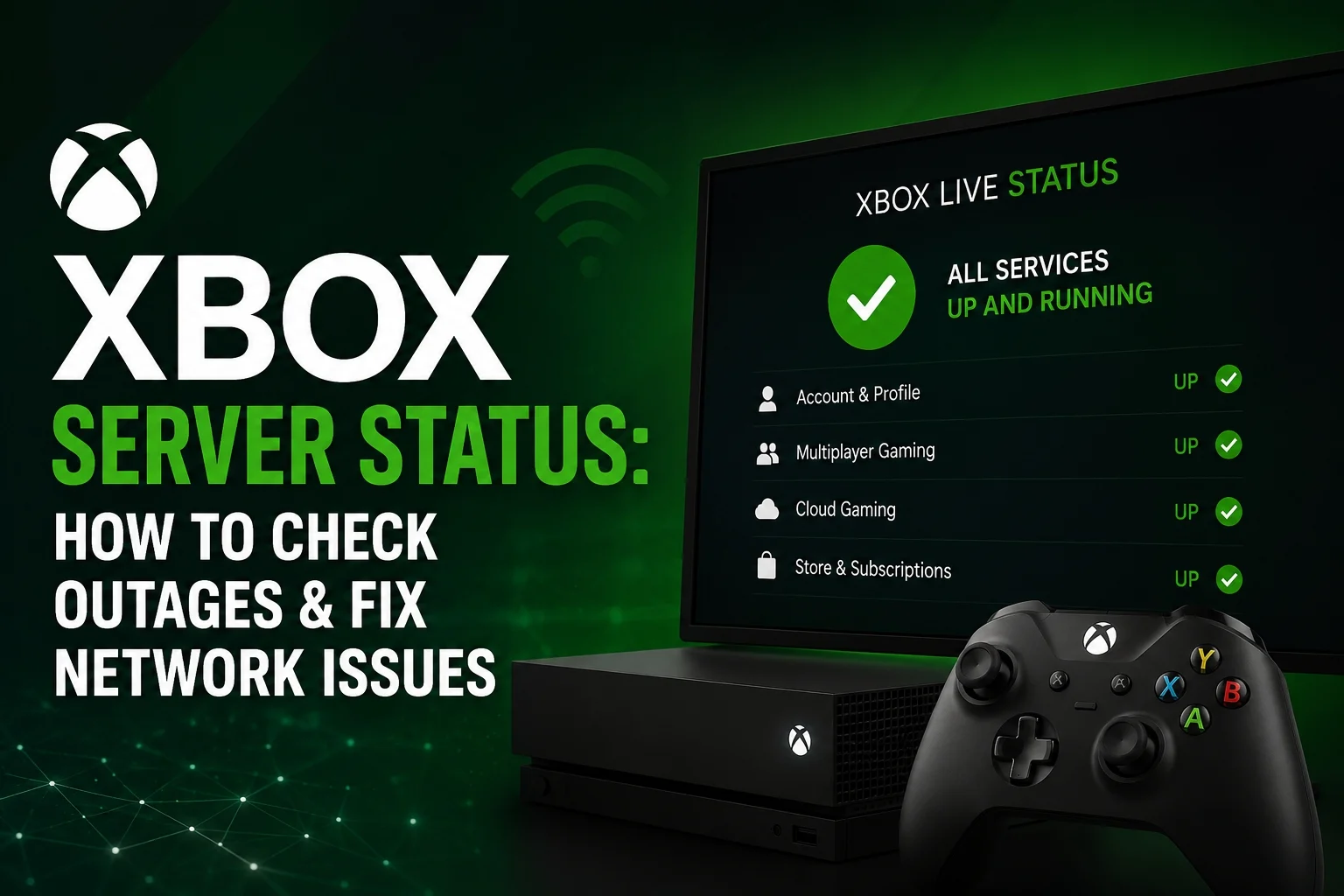
Xbox Server Status:- There are few things more frustrating for a gamer than getting completely disconnected right in the middle of an intense multiplayer match. When your party chat goes quiet, matchmaking fails, or your digital games refuse to load, your first question is likely: “Is it my internet, or are the Xbox servers down?”
Knowing how to check the Xbox server status is the fastest way to save yourself from unnecessary router reboots and console resets. Often, the issue lies directly with Microsoft’s backend systems rather than your home network.
In this comprehensive guide, we will explore exactly how to check the current Xbox network status, understand what different service alerts mean, and walk through expert troubleshooting steps you can take when the servers are perfectly fine but your console still refuses to connect.
How to Check the Xbox Server Status
Before you dive into changing your router settings or pulling cords out of the wall, you need to verify if the problem is on Microsoft’s end. Here are the three most reliable ways to check for an outage.
1. The Official Xbox Status Page
Microsoft maintains a dedicated, real-time dashboard at support.xbox.com/xbox-live-status. This page breaks down every facet of the Xbox ecosystem. If there is a known issue, Microsoft will highlight it here, often with a timeline for resolution.
2. Third-Party Outage Trackers
Websites like Downdetector aggregate user reports from around the world. Because the official Xbox page sometimes takes 15–30 minutes to update during a sudden crash, checking Downdetector can tell you immediately if thousands of other players are suddenly experiencing identical issues.
3. Social Media Updates
The official @XboxSupport account on X (formerly Twitter) is highly active. They post updates the moment engineers begin investigating an outage and announce when the servers are fully restored.
Understanding Xbox Network Status Messages
When you visit the official status page, you will notice that Xbox categorizes its network into distinct “services.” It is rare for the entire network to crash simultaneously.
Breakdown of Xbox Services
| Service Category | What It Controls | Impact When Down |
| Account & Profile | Signing in, managing accounts. | You cannot log into your Xbox profile. |
| Multiplayer Gaming | Matchmaking, game servers. | You can sign in, but cannot play online games. |
| Social & Gaming | Party chat, friends list, messages. | You can play online, but cannot talk to friends. |
| Store & Subscriptions | Buying games, redeeming codes. | You cannot make purchases or download new games. |
| Cloud Gaming | Xbox Game Pass streaming. | You cannot stream games to your console, PC, or phone. |
Deciphering the Status Icons
- Up and running (Green Check): Everything is operating normally. If you have an issue, it is likely on your end.
- Limited (Yellow Triangle): Some users may experience slowness or intermittent drops in this specific service.
- Major Outage (Red Circle): The service is completely offline for all or most users. Engineers are actively working on a fix.
Common Reasons for Xbox Live Outages
Why do servers go down in the first place? Even a massive tech infrastructure like Microsoft’s Azure cloud network experiences hiccups.
- Routine Maintenance: Microsoft frequently updates server hardware and software. These are usually scheduled during off-peak hours.
- Massive Traffic Spikes: When a highly anticipated game hits Xbox Game Pass, millions of players attempting to download or log in simultaneously can bottleneck the servers.
- DDoS Attacks: Distributed Denial of Service attacks occur when malicious actors flood the Xbox servers with fake traffic, overloading the system.
- ISP Routing Issues: Sometimes the Xbox servers are fine, but a major internet backbone provider in your region has suffered an infrastructure failure.
How to Troubleshoot Connection Issues (Best Practices)
If the Xbox server status shows everything is “Up and running,” but you still cannot connect, it is time to troubleshoot your own hardware.
1. Perform a Full Console Restart
Do not just put the console to sleep. Press and hold the Xbox button on the front of your console for 10 seconds to force a hard shutdown. Unplug it for one minute, plug it back in, and turn it on. This clears the system cache.
2. Check Your NAT Type
Your NAT (Network Address Translation) type dictates how easily your console can talk to other consoles.
- Go to Settings > General > Network settings.
- Look at your NAT Type. If it says Strict or Moderate, you will face matchmaking and party chat issues.
- You want an Open NAT type. Achieving this may require turning on UPnP in your router settings.
3. Power Cycle Your Router
Unplug your Wi-Fi router and modem for 60 seconds. Plug them back in and wait for all the lights to turn green before attempting to reconnect your Xbox.
4. Switch to Alternate DNS Settings
Sometimes your Internet Service Provider’s (ISP) default DNS servers are sluggish. Switching to a public DNS can resolve login issues.
- Go to Network settings > Advanced settings > DNS settings > Manual.
- Enter Primary: 8.8.8.8
- Enter Secondary: 8.8.4.4 (These are Google’s public DNS servers).
Challenges or Limitations of Server Outages
The shift towards digital-only gaming presents unique challenges during server outages.
DRM (Digital Rights Management) Checks: If your console is not set as your “Home Xbox,” you must connect to the internet to verify your game licenses. During a total server blackout, you will be locked out of your digital game library.
Cloud Gaming Reliance: Players who use Xbox Cloud Gaming via Game Pass Ultimate are entirely dependent on server status. An outage means a 100% loss of access, with no offline alternative available.
Expert Tips and Common Mistakes
Common Mistakes
- Uninstalling Games in a Panic: Never uninstall and try to reinstall a game during a network outage. It will not fix the issue, and you will not be able to download the game again until servers are restored.
- Resetting the Router Immediately: Do not blame your router first. Always check the official status page before disrupting your entire home network.
Expert Tips
- Hardwire Your Connection: Always use an Ethernet cable instead of Wi-Fi for your console. It prevents packet loss and provides a much more stable connection to Xbox servers.
- Set Up a Home Xbox: Go to Settings > General > Personalization > My home Xbox and check the box. This allows you to play your downloaded digital games completely offline if the servers go down.
Latest Trends in Xbox Networking
As the gaming industry evolves, so does server infrastructure. The latest trend is the massive reliance on Cloud Infrastructure.
Microsoft is utilizing its powerful Azure network to handle complex calculations for multiplayer games, reducing the strain on the physical console. However, this means that an Azure region going down for enterprise clients might also temporarily impact local Xbox matchmaking services.
Additionally, Cross-Platform Play requires Xbox servers to communicate seamlessly with PlayStation and PC servers (Steam/Epic). Sometimes, Xbox servers are fine, but an issue with a third-party server (like EA or Activision) will cause a specific game to crash.
Real-Life Example: Major Launch Day Crashes
Consider the launch of massive hits like Palworld or major Call of Duty updates. On these days, the sudden influx of millions of concurrent players checking for updates places immense stress on the Xbox server status.
During a recent major release, Xbox Core Services suffered a “Limited” status. Players could sign in, but the store page crashed repeatedly, preventing downloads. By monitoring the Xbox Support Twitter page, players learned they could circumvent the store crash by triggering the download remotely via the Xbox mobile app—a clever workaround that bypassed the overloaded console store interface entirely.
Conclusion
Understanding how to check your Xbox server status is a vital skill for any modern gamer. Dealing with network drops and service outages is an inevitable part of online gaming, but knowing where to look for accurate information takes the guesswork out of troubleshooting.
By relying on the official Xbox status page, monitoring community reports on Downdetector, and keeping your own hardware optimized (like maintaining an Open NAT type and setting up a Home Xbox), you can minimize frustration. Next time your game suddenly disconnects, stay calm, check the status dashboard, and save yourself from needlessly resetting your router.